
In today’s digital world, video content has become very popular on platforms like Instagram, YouTube, TikTok, and Facebook. People love watching creative videos with smooth effects and eye-catching movement. This is where Transitions and Animations Alight Motion play a very important role. If you want to make professional and engaging videos on your mobile phone, learning how to use transitions and animations in Alight Motion is very important.
Alight Motion is one of the most powerful mobile video editing applications available today. It allows users to create motion graphics, visual effects, animations, and smooth transitions between clips. Even beginners can create professional-looking videos with the help of this app. The best part is that it offers many animation tools that were previously available only in advanced desktop software.
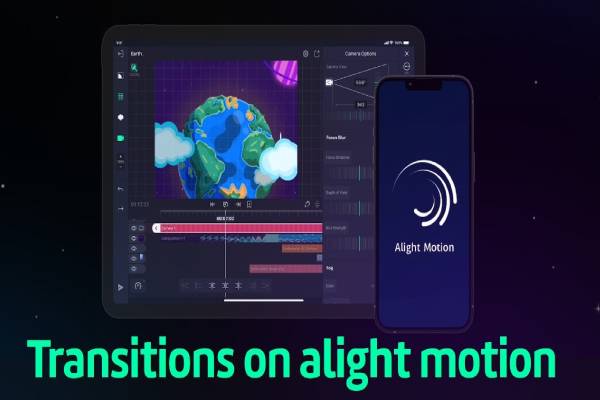
When you add transitions between clips, your video becomes smoother and more enjoyable to watch. Without transitions, videos may look rough or disconnected. Animations, on the other hand, bring life to elements like text, images, shapes, and videos. For example, text can slide, bounce, fade, or rotate, which makes the content more attractive.
In this article, we will explore Transitions and Animations Alight Motion in very simple language. You will learn how transitions work, how animations are created, and how you can use them to improve your videos. Whether you are a beginner or someone who already edits videos, this guide will help you understand everything step by step.
Understanding Basics Of Alight Motion Animations
Before using Transitions and Animations Alight Motion, it is important to understand the basic concept of animation. Animation simply means adding movement to objects like text, images, shapes, or video clips. Instead of appearing in a static way, elements move smoothly across the screen.
Alight Motion uses a powerful system called keyframes. Keyframes help define the starting and ending position of an object. For example, if you want text to move from the left side of the screen to the center, you can create a keyframe at the beginning and another keyframe at the end. The app automatically creates movement between these points.
Animations can be used in many ways. For example, text can fade in, slide in, rotate, zoom, or bounce. Images can slowly appear or move across the screen. Shapes can transform into other shapes. These small movements make the video look more professional and dynamic.
Another important part of Transitions and Animations Alight Motion is timing. Good animation depends on how fast or slow the movement is. If an animation is too fast, viewers may not notice it. If it is too slow, the video may feel boring. Therefore, adjusting timing is very important for creating balanced animations.
One more useful feature is easing. Easing controls how movement starts and ends. Instead of moving in a straight mechanical way, easing makes animation smoother and more natural. For example, an object can start slowly, speed up in the middle, and slow down again at the end.
Learning these basic animation concepts will make it much easier to create amazing videos using Alight Motion. Once you understand keyframes, timing, and easing, you can create almost any animation you imagine.
Importance Of Smooth Video Transitions
Transitions are a key part of Transitions and Animations Alight Motion because they connect different clips smoothly. When you move from one clip to another without a transition, the change may look sudden or rough. A good transition makes the video flow naturally.
For example, imagine you are creating a travel vlog. If you show one location and suddenly cut to another, the video may feel disconnected. But if you add a fade, slide, or zoom transition, the scene changes smoothly and looks more professional.
There are many types of transitions available in Alight Motion. Some popular transitions include fade, slide, zoom, spin, and blur. Each transition creates a different visual effect. Choosing the right transition depends on the type of video you are creating.
Smooth transitions are especially important for social media content. Viewers usually scroll very fast, so you need visually appealing transitions to capture their attention. Creative transitions can make your video stand out and increase engagement.
Another advantage of using transitions is storytelling. Transitions help guide the viewer from one moment to the next. For example, a fade transition may show a passage of time, while a zoom transition may highlight an important moment.
However, it is important not to overuse transitions. Too many effects can make the video look messy. The best practice is to use transitions only when they improve the flow of the video.
By using transitions wisely, you can greatly improve the quality of your videos and make them more enjoyable to watch.
Creating Basic Animations Using Keyframes
One of the most powerful features of Transitions and Animations Alight Motion is the keyframe system. Keyframes allow you to control movement in a very precise way.
To create an animation, you first add an object such as text, image, or shape to the timeline. Then you select the object and enable keyframes for properties like position, scale, rotation, or opacity. Once keyframes are added, you can change the object’s value at different points in the timeline.
For example, if you want text to appear slowly, you can start with opacity set to 0%. Then, after a few seconds, create another keyframe with opacity set to 100%. The text will gradually fade in between these two keyframes.
Similarly, if you want an image to move across the screen, you can create a starting keyframe on the left side and an ending keyframe on the right side. The app will automatically animate the movement between them.
Keyframes can also be combined to create complex animations. For example, text can move, rotate, and scale at the same time. This allows creators to design very creative effects.
The keyframe editor in Alight Motion also includes curves that help control speed. These curves allow you to create smooth motion instead of rigid movement. Many professional editors use curves to make animations look more cinematic.
Once you understand how keyframes work, you can create unlimited animation styles in your videos. This is why mastering keyframes is essential for anyone learning Alight Motion.
Using Preset Transitions For Quick Editing
Not everyone has the time to create animations from scratch. This is why preset transitions are very useful in Transitions and Animations Alight Motion. Presets allow users to apply ready-made effects instantly.
Alight Motion includes many built-in transition presets. These presets are designed to work smoothly between two clips. You simply drag the transition between clips, and the app automatically creates the animation.
Common preset transitions include fade, zoom, swipe, dissolve, and spin. These transitions can be used for different types of videos. For example, fade transitions work well for emotional scenes, while zoom transitions are great for energetic videos.
Using presets also helps beginners learn how animations work. By observing preset transitions, users can understand how motion, speed, and effects are combined to create smooth visuals.
Another benefit of presets is saving time. Instead of spending hours creating complex animations, editors can quickly apply a preset and adjust its duration if needed.
However, many creators also customize preset transitions. They may change speed, direction, or add additional effects to make the transition unique.
For social media creators who produce content regularly, preset transitions are extremely helpful. They allow fast editing while maintaining professional quality.
Advanced Animation Techniques For Creators
Once you understand the basics of Transitions and Animations Alight Motion, you can explore advanced animation techniques. These techniques help creators produce highly professional videos.
One popular technique is motion tracking. Motion tracking allows objects like text or graphics to follow a moving subject in a video. For example, you can attach text to a moving car or person.
Another advanced technique is layer animation. Alight Motion allows multiple layers, and each layer can have its own animation. By combining layers, creators can design complex scenes with depth and movement.
Effects such as blur, glow, shadow, and color adjustments can also be animated. This means effects can change over time, creating more dynamic visuals.
Masking is another powerful feature. Masks allow you to reveal or hide parts of a video. When combined with animation, masking can create impressive transition effects.
Professional editors also use velocity curves to control animation speed. This allows movement to start slowly, speed up, and slow down again naturally.
These advanced techniques may take some practice to master, but they greatly improve the overall quality of video editing. With creativity and experimentation, you can create stunning animations using Alight Motion.
Tips For Professional Looking Motion Effects
Creating great Transitions and Animations Alight Motion requires both creativity and good editing practices. Even simple animations can look professional if used correctly.
One important tip is consistency. Try to use similar styles of transitions throughout your video. Random or inconsistent transitions may confuse viewers.
Another tip is timing. Animations should match the rhythm of the video, especially if music is involved. When transitions occur on beat with music, the video becomes more engaging.
Using subtle animations often looks better than extreme effects. Small movements like fade-ins, slight zooms, or gentle slides can make the video look polished.
Color grading and visual effects can also improve transitions. Matching colors between clips helps create a smoother visual experience.
It is also helpful to watch tutorials and study professional videos. Observing how experienced editors use transitions can inspire new ideas.
Finally, practice is the key to improvement. The more you experiment with animations and transitions, the better your editing skills will become.
With time and creativity, anyone can create stunning motion graphics using Alight Motion.