
Creating attractive videos today is not only about adding clips and music. Text also plays a very important role in video editing. Text helps explain ideas, share messages, and make videos look more professional. In mobile video editing, Text and Titles Alight Motion is one of the most useful features that creators use to improve their content.
Alight Motion is a popular mobile editing application used by beginners and professional editors. With this app, users can add beautiful text, titles, captions, and animated typography to their videos. Whether you are making YouTube videos, Instagram reels, TikTok edits, or short promotional clips, the Text and Titles Alight Motion feature can help your content look more engaging and stylish.
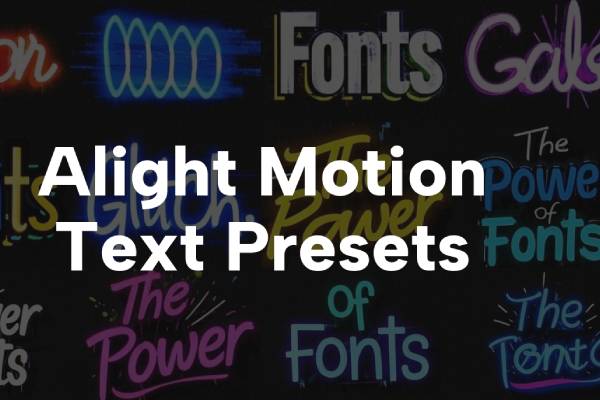
Many creators think adding text is difficult, but Alight Motion makes it simple. The app provides many tools like font selection, text animation, color adjustment, shadow effects, and motion graphics. With these tools, you can create eye-catching titles and captions that grab the viewer’s attention instantly.
In this guide, we will explain everything about Text and Titles Alight Motion in very simple language. You will learn how to add text, customize titles, animate words, choose fonts, apply effects, and create professional-looking typography. If you are new to editing, this guide will help you understand the basics easily.
Understanding Text Tools In Alight Motion
The Text and Titles Alight Motion feature starts with the text tool. This tool allows users to add words, captions, headings, and titles to their videos. When you open the Alight Motion editor, you will see an option called Text in the toolbar. By selecting this option, you can easily type any text you want in your video.
After typing the text, the app allows you to customize it in many ways. You can change the font style, size, alignment, and spacing. This helps you design text exactly the way you want. For example, if you are creating a title for a YouTube video, you can use bold fonts and large text size so viewers can easily read it.
Another useful feature in Text and Titles Alight Motion is the ability to change colors. You can select any color for your text and even create gradient colors. Gradient text means using two or more colors together to create a stylish effect. This makes the title look more modern and attractive.
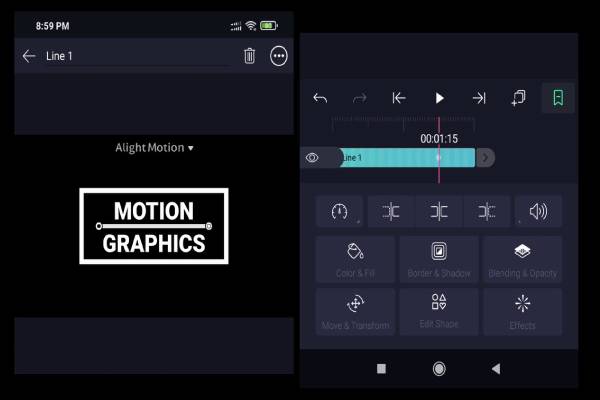
You can also rotate text, resize it, or move it anywhere on the screen. This flexibility helps editors create unique designs for every project. For example, some creators place text in the center of the screen while others place it in the corner.
The text tool also allows users to add multiple text layers. This means you can add several titles and captions in one video project. Each text layer can be edited separately.
Overall, the text tool is the foundation of Text and Titles Alight Motion. Once you understand how it works, creating professional titles becomes much easier.
Creating Professional Titles For Videos
Titles are the first thing viewers notice in a video. A strong title helps attract attention and clearly tells viewers what the video is about. That is why learning to create good titles using Text and Titles Alight Motion is very important.
To create a title in Alight Motion, you simply add a text layer and type your title. After that, you can customize the style. Many creators use bold fonts for titles because they are easier to read. Bright colors are also commonly used to make the title stand out.
Another useful technique is adding background shapes behind the text. For example, you can place a colored rectangle behind the title. This makes the text easier to read and gives the design a professional look.
You can also adjust the position of the title. Some editors place titles at the beginning of the video as an intro. Others place titles in the middle of the video to highlight important information.
Timing is also important when creating titles. In Text and Titles Alight Motion, you can control how long the title appears on the screen. This ensures viewers have enough time to read the message.
Many professional editors also combine titles with animations. Animated titles move, fade, or slide onto the screen. This makes the video more dynamic and interesting.
By practicing different styles and layouts, you can create beautiful titles that improve the overall quality of your videos.
Using Fonts To Improve Text Design
Fonts play a very important role in Text and Titles Alight Motion. The font style you choose can change the entire look of your video. Some fonts look professional, while others look fun or creative.
Alight Motion includes many built-in fonts that you can use for titles and captions. Each font has a unique style. For example, some fonts are bold and strong, while others are thin and elegant.
Choosing the right font depends on the type of video you are creating. If you are making a tutorial or educational video, simple fonts work best. They are easy to read and look professional. For entertainment or social media videos, creative fonts can make the design more interesting.
Another great feature of Text and Titles Alight Motion is that users can import custom fonts. This means you can download fonts from the internet and use them in your projects. Custom fonts allow editors to create unique designs that stand out.
Spacing is also important when working with fonts. Letter spacing and line spacing help improve readability. If text is too close together, it becomes difficult to read. Adjusting spacing can make your titles look clean and organized.
Font color is another key element. Many editors match the font color with the video theme. For example, bright colors are often used in gaming edits, while soft colors are used in aesthetic videos.
By choosing the right fonts and adjusting their settings, you can create impressive text designs using Text and Titles Alight Motion.
Animating Text For Better Visual Effects
One of the best features of Text and Titles Alight Motion is text animation. Animation makes text move on the screen, which creates a more dynamic and engaging video.
There are many types of text animations available in Alight Motion. Some text can slide into the screen from the side. Other text can fade in slowly. Some titles even bounce or rotate while appearing.
These animations are created using keyframes. Keyframes allow editors to control how text moves over time. For example, you can set one keyframe where the text starts outside the screen and another where it appears in the center. The app will automatically animate the movement between these points.
Text animation is very popular in social media videos because it helps capture the viewer’s attention. Instead of showing plain text, animated titles make the content more exciting.
Another useful technique is combining text animation with sound effects or music beats. This creates a smooth and satisfying editing style that many viewers enjoy.
However, it is important not to overuse animations. Too many movements can make the video look messy. The best approach is to use simple animations that match the theme of your video.
With practice, you can create stunning animated titles using Text and Titles Alight Motion.
Adding Effects And Styling To Text
Effects and styling are essential parts of Text and Titles Alight Motion. These tools help editors make text more creative and visually appealing.
One common effect is the shadow effect. Adding a shadow behind the text makes it stand out from the background. This improves readability, especially when the video has bright colors.
Another popular styling option is the outline or stroke effect. This creates a border around the text letters. Many YouTube editors use outlines to make titles bold and eye-catching.
Glow effects are also widely used. Glow adds a soft light around the text, giving it a modern look. This effect is often used in gaming edits and music videos.
Gradient colors are another powerful styling tool in Text and Titles Alight Motion. Instead of using a single color, gradient text blends multiple colors together. This creates a beautiful and professional design.
Editors can also adjust opacity, blending modes, and blur effects to create unique styles. By experimenting with different effects, you can design text that matches the theme of your video perfectly.
When used correctly, text styling can transform simple captions into attractive design elements.
Best Practices For Text In Videos
Using Text and Titles Alight Motion effectively requires good design practices. Even though the app provides many tools, using them wisely is important.
First, always keep text readable. Avoid using fonts that are too complicated. Simple fonts are easier for viewers to understand quickly.
Second, do not use too many colors. Using two or three colors is usually enough. Too many colors can make the text look confusing.
Another important tip is maintaining proper text size. Titles should be large enough to read easily, even on small mobile screens. Captions can be slightly smaller but should still be clear.
Spacing is also very important. Proper spacing between letters and lines makes text easier to read.
Timing is another key factor. Text should appear long enough for viewers to read comfortably. If the text disappears too quickly, viewers may miss the message.
Finally, keep the design consistent. Use similar fonts, colors, and animation styles throughout the video. This creates a clean and professional editing style.
Following these practices will help you create better text designs using Text and Titles Alight Motion.