
In today’s digital world, video content has become one of the most powerful ways to communicate ideas and build an online presence. Platforms like YouTube Shorts, Instagram Reels, and TikTok have made short videos extremely popular. To stand out among millions of creators, using creative backgrounds and professional editing techniques is very important. This is where Green Screen Alight Motion becomes incredibly useful.
Green screen technology, also called chroma key editing, allows creators to remove a colored background and replace it with any image or video. With the help of the Alight Motion app, you can perform this advanced editing directly on your smartphone without needing expensive computer software.
This guide will help you understand how to use Green Screen Alight Motion step by step. From basic setup to exporting a high-quality video, you will learn everything needed to create professional looking content.
Basics of Green Screen Editing
Before using Green Screen Alight Motion, it is important to understand how green screen technology works. In simple words, a green screen is a bright green background placed behind a subject during video recording. The editing software then identifies that green color and removes it from the video.
After removing the green color, you can replace it with any background you want. For example, you can appear on a beach, in a city, inside a studio, or even in a fantasy environment.
The reason green color is used is because it is very different from human skin tones and clothing colors. This makes it easier for editing software to detect and remove it accurately.
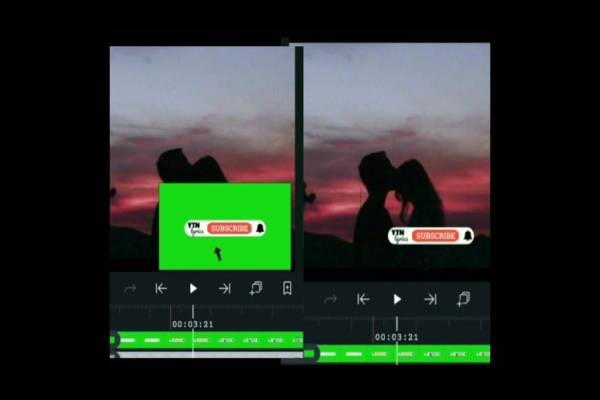
One of the best advantages of using the Alight Motion is that it provides a powerful Chroma Key effect. This effect allows you to remove the green background with precision while keeping the subject clear.
Many beginners believe that professional green screen editing requires expensive cameras and studio equipment. However, that is not always true. Even a smartphone camera and a simple green cloth can produce great results when combined with proper lighting and good editing techniques.
Creating a New Green Screen Project
The first step in Green Screen Alight Motion editing is creating a properly structured project. When you open the Alight Motion app, tap the “Create Project” button and choose your desired resolution and frame rate.
For most social media platforms, the recommended settings are:
- Resolution: 1080p (Full HD)
- Frame Rate: 30fps or 60fps
- Aspect Ratio: 9:16 for vertical videos
After creating the project, the next step is importing your files. A very important rule in green screen editing is layer order.
First, import the background image or video. This will act as the base layer of your project. After that, import your green screen footage on the layer above it.
When the green color is removed, the background layer will automatically become visible behind your subject.
You can also adjust the position and size of your subject using the Move & Transform tool. Make sure the subject looks natural within the background environment. Proper positioning helps make the video look more realistic and professional.
Using Chroma Key Effect Correctly
The most important step in Green Screen Alight Motion editing is applying the Chroma Key effect.
Follow these steps:
- Select your green screen layer
- Tap on Effects
- Click Add Effect
- Choose Chroma Key
Once the effect is applied, you will need to select the key color. Use the color picker tool to select the green background in your video.
As soon as you select the color, the green background will disappear, revealing the background layer behind it.
However, removing the background perfectly usually requires a little adjustment. The two most important settings are:
Threshold
This setting controls how much of the green color is removed. Increasing the threshold removes more green areas from the video.
Feather
Feather softens the edges of your subject. This helps blend the subject naturally with the new background.
Adjust these settings carefully until the edges look clean and natural. This step is essential for achieving professional quality results.
Importance of Proper Lighting
Lighting plays a very important role in Green Screen Alight Motion editing. Even the best editing software cannot fix poorly recorded footage.
If the green background has shadows, wrinkles, or uneven lighting, it becomes difficult for the software to remove it completely.
To achieve the best results, follow these tips:
- Keep the green screen smooth and wrinkle-free
- Ensure the background is evenly lit
- Place the subject a few feet away from the screen
- Avoid strong shadows on the background
Natural sunlight can work well if it lights the background evenly. Many creators also use affordable softbox lights to maintain consistent lighting.
When lighting is balanced, the green color becomes uniform. This makes it much easier for the chroma key tool to detect and remove the background without leaving green edges or noise.
Good lighting not only improves editing but also makes the overall video look clearer and more professional.
Adding Backgrounds and Creative Effects
After removing the green background, you can start building a creative scene. This is where Green Screen Alight Motion editing becomes truly exciting.
Instead of using a simple image, try using a video background. Moving backgrounds make the video look more dynamic and realistic.
For example, you can add:
- City landscapes
- Nature scenes
- Studio environments
- Animated backgrounds
Another useful technique is adding overlays. Overlays are additional visual elements placed on top of the video to enhance the scene.
Common overlays include:
- Light leaks
- Dust particles
- Smoke effects
- Lens flares
You can also animate the background using keyframes. For example, adding a slow zoom effect can create the feeling that the camera is moving.
Professional editors often apply color grading to match the subject with the background. If your background is warm and orange, slightly adjusting the color tone of your subject helps make the scene look more realistic.
These small details can significantly improve the quality of your final video.
Exporting High Quality Video
After finishing your editing work, the final step is exporting your project correctly.
Export settings play a major role in maintaining the quality of your Green Screen Alight Motion video.
To export your video:
- Tap the Export icon
- Choose Video format
- Select the desired resolution
For best quality, use:
- Resolution: 1080p or 4K
- Frame Rate: Same as project settings
- Bitrate: High
A higher bitrate helps preserve the sharp edges of the subject and prevents pixelation.
Many beginners make the mistake of exporting at low quality to reduce file size. Unfortunately, this can cause unwanted green edges or compression artifacts in the final video.
Before exporting, always preview the video carefully to ensure that no green areas remain visible.
Once everything looks perfect, export the video and save it to your device. Your professionally edited green screen video will then be ready to upload on social media platforms.