
Video editing has become very popular today. Many people create videos for social media platforms like Instagram, YouTube, and TikTok. To make videos attractive and professional, people use different editing applications. One of the most popular apps for mobile video editing is Alight Motion. This app provides many powerful tools that help users create high-quality videos easily.
One of the most important skills in video editing is Adding and Trimming Clips Alight Motion. When you edit a video, you often need to add different clips together and cut unnecessary parts from them. Trimming helps remove mistakes, silence, or unwanted moments so the final video looks clean and professional.
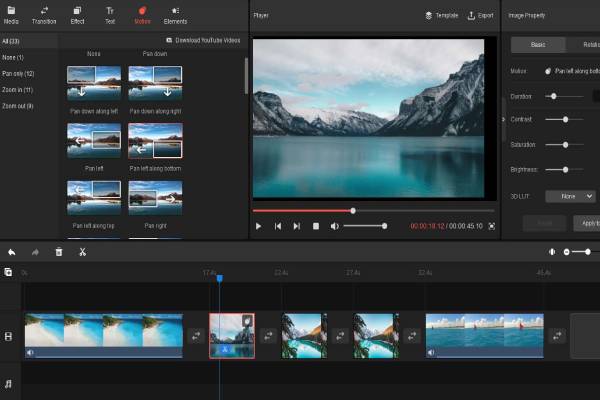
If you do not know how to add clips or trim them correctly, your video may look messy or too long. That is why learning Adding and Trimming Clips Alight Motion is very important for beginners and creators.
In this article, we will explain everything in very simple language. You will learn how to add clips, trim them properly, manage your timeline, and create smooth video edits. After reading this guide, you will be able to edit videos in Alight Motion more confidently.
Understanding Adding Clips In Alight Motion
Before you learn trimming, you must first understand how to add clips in Alight Motion. Adding clips means importing video, images, or other media into your project timeline so you can edit them.
When you open Alight Motion, the first step is to create a new project. After creating a project, you will see the editing interface. In this interface, there is a plus (+) button that allows you to add new media files.
When you click the plus button, several options appear. You can add videos, photos, shapes, text, or audio files. For video editing, you usually select a video clip from your phone gallery. After selecting the clip, it will appear in the timeline where you can edit it.
The timeline is the main area where all editing happens. Each clip you add appears as a layer. You can move these clips forward or backward to arrange them in the correct order. This is very useful when you want to combine multiple videos into one project.
Another advantage of adding clips in Alight Motion is that you can add unlimited clips depending on your project. Many creators use multiple short clips to make one long video. This makes the video more engaging and dynamic.
When you understand adding and Trimming Clips Alight Motion, you will be able to create smooth and professional edits. Proper clip placement also helps maintain the flow of the story in your video.
Step By Step Add Video Clips
Adding video clips in Alight Motion is a very easy process. Even beginners can learn it quickly with a little practice. When you open the app, the first step is to create a project according to your video size and frame rate.
After creating the project, you will see an empty timeline. To add a clip, you need to press the Add Layer button. This button is usually located at the bottom right side of the screen.
Once you click the add layer button, a list of options appears. From this list, you need to choose Media. When you select the media option, your phone gallery will open, allowing you to choose the video clip you want to add.
After selecting the clip, it will automatically appear in the timeline. You can now move it left or right depending on where you want it to appear in the video. If you want to add another clip, simply repeat the same steps.
One important tip when Adding and Trimming Clips Alight Motion is to organize your clips properly. Place them in the correct order so your video tells a clear story.
You can also zoom into the timeline to see clips more clearly. This helps when you want to make precise edits. Many beginners skip this step, but zooming the timeline makes editing easier.
With practice, adding clips will become a very quick and simple task. Once your clips are added, the next step is trimming them to remove unnecessary parts.
How To Trim Clips Properly
Trimming clips is one of the most important editing skills in Alight Motion. Trimming simply means cutting unwanted parts from the beginning or end of a video clip.
Sometimes when you record a video, there may be mistakes, extra silence, or unwanted scenes. If you keep these parts in the video, it may look unprofessional. That is why trimming is necessary.
To trim a clip in Alight Motion, first select the clip in the timeline. When you tap the clip, editing options will appear. You will see small handles at the start and end of the clip.
These handles allow you to shorten the clip. If you drag the left handle to the right, it will remove the beginning part of the video. If you drag the right handle to the left, it will remove the ending part.
While trimming, it is important to watch the preview screen. This helps you make sure you are cutting the correct part of the video.
Another useful feature in Adding and Trimming Clips Alight Motion is frame-by-frame editing. This means you can trim clips very precisely so the cut looks perfect.
Professional video editors always trim clips carefully. This keeps the video interesting and removes unnecessary moments that may make viewers lose interest.
Adjusting Clip Length In Timeline
After adding and trimming clips, the next step is adjusting the clip length in the timeline. This helps you control how long each clip appears in your video.
In Alight Motion, every clip has a duration. The duration is simply the amount of time the clip stays on screen. If a clip is too long, your video may become boring. If it is too short, viewers may not understand the scene.
To adjust the length, select the clip in the timeline. Then drag the start or end edges of the clip. This will increase or decrease the duration of the clip.
Many editors use this technique to match clips with music. For example, if you are editing a music video, you may want each clip to change according to the beat of the song.
When working on Adding and Trimming Clips Alight Motion, timeline control is very important. It helps maintain a smooth flow between scenes.
Another helpful trick is to zoom the timeline for better accuracy. This allows you to make small adjustments without making mistakes.
With proper timeline adjustment, your video will look more organized and professional. Even simple clips can look amazing when they are placed and timed correctly.
Tips For Smooth Clip Editing
When editing videos in Alight Motion, small techniques can make a big difference. If you want your video to look professional, you should follow some simple editing tips.
First, always trim unnecessary parts from your clips. Extra footage can make your video look slow and uninteresting. Clean and short clips keep viewers engaged.
Second, organize your clips properly in the timeline. If clips are placed randomly, the video may confuse viewers. Always arrange them in the correct order.
Third, use transitions between clips. Transitions make the change between scenes smoother. Without transitions, the cuts may look rough.
Another important tip for Adding and Trimming Clips Alight Motion is to use zoom on the timeline. This helps you edit clips with more accuracy.
Also try to match clips with audio or music. When clips change with the beat, the video feels more exciting.
Practice is also very important. The more you edit videos, the better your skills will become. Many professional editors started with simple edits and improved over time.
If you follow these tips, your videos will look much cleaner and more professional.
Common Mistakes While Trimming Clips
Many beginners make mistakes when they start editing videos in Alight Motion. These mistakes can make the video look unprofessional or confusing.
One common mistake is trimming too much. Sometimes editors accidentally remove important parts of the clip. This can break the flow of the story.
Another mistake is leaving unnecessary footage in the video. If you do not trim properly, the video may contain boring moments. Viewers usually lose interest when videos are too long.
Some beginners also forget to check the preview after trimming. This can cause awkward cuts or sudden scene changes.
When learning Adding and Trimming Clips Alight Motion, it is important to watch the preview many times. This ensures your edits look smooth.
Another mistake is ignoring the timeline zoom feature. Editing without zooming can make cuts less precise.
Finally, many beginners rush their editing. Good editing takes patience. If you take your time and carefully trim each clip, the final result will look much better.
Avoiding these mistakes will help you create better and more professional videos.