
Keyframing is one of the most powerful features inside Alight Motion, allowing you to create smooth animations, dynamic movements, and professional-looking effects directly on your smartphone. Whether you edit videos, motion graphics, or text animations, keyframes give you full control over how your elements change over time.
What Are Keyframes?
A keyframe is a point on the timeline where you set a specific value for a property — such as position, scale, rotation, or opacity.
When you add another keyframe with different values, Alight Motion automatically creates smooth transitions between them, creating natural and fluid animation.
How to Use Keyframing Tools in Alight Motion
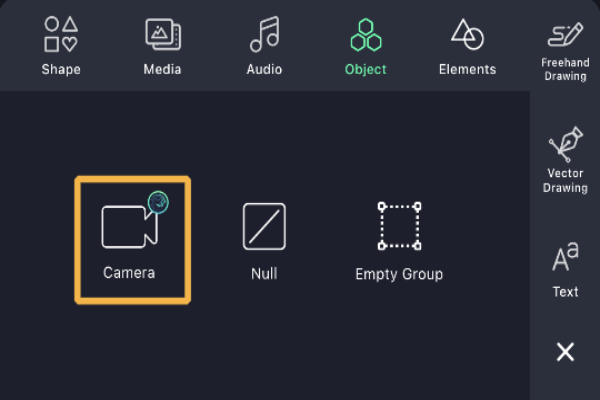
Add a Layer
Insert your media into the timeline — text, image, shape, or video.
Select the Layer
Tap the layer you want to animate.
Move the Playhead
Position the playhead at the moment where your animation should start.
Adjust a Property
Change something like:
- Position
- Scale
- Rotation
- Opacity
- Effects
Add a Keyframe
Tap the keyframe icon (diamond shape).
This saves the value at that point.
Move Forward & Change Again
Slide the playhead to another moment and adjust the property again.
A new keyframe is automatically created.
Key Properties You Can Animate
Alight Motion lets you keyframe almost every property, including:
- Movement (up, down, left, right)
- Zoom in/out
- Object rotation
- Fade in/out
- Color & effects
- Blur, shadow, glow
- Text appearance animations
Easing & Curves for Smooth Motion
Alight Motion also offers easing curves, which control how fast or slow an animation starts and ends.
These include:
- Linear – same speed from start to finish
- Ease In – starts slowly, speeds up
- Ease Out – starts quickly, slows down
- Ease In Out – smooth acceleration and deceleration
Advanced Keyframing Features
- For more creative control, you can use:
- Custom motion paths
- Graph editing for timing control
- Layer timing offsets
- Keyframing effects like glow, blur, shake, shadow
Tips for Better Keyframe Animation
- Keep your timeline organized.
- Use easing for smoother motion.
- Start with simple movements and build gradually.
- Keep keyframes evenly spaced for cleaner animation.
- Preview frequently to catch mistakes early.